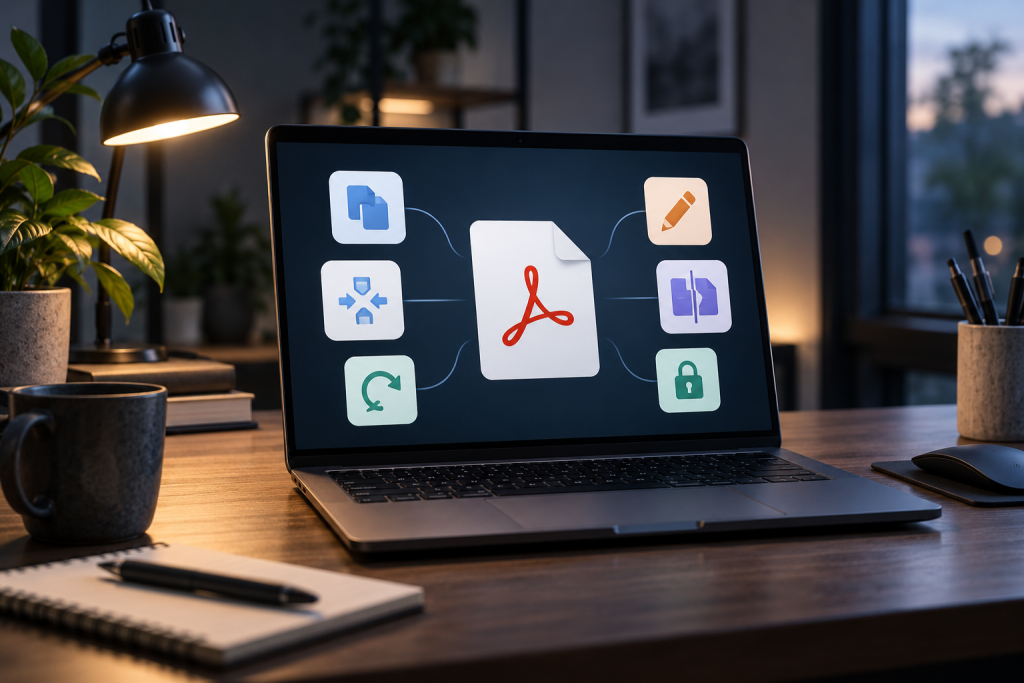
Adobe Acrobat Pro costs $23 a month. For changing a typo in a contract or signing a form, that’s absurd. The problem is that most “free” PDF tools aren’t free at all, they’re trials with a watermark, a 2-file-per-day cap, or an account wall waiting at the export button. I spent a week testing the ones that don’t pull that trick.
Here’s what I found works, sorted by what you actually need to do. No affiliates, no referral links, and no tool on this list stamps a watermark on your document.
If you need to edit existing text, not just annotate
This is the hard part. Most free PDF tools can add a text box or a highlight. Very few can click into a paragraph and change the words already there.
LibreOffice Draw
Draw is the closest thing to Acrobat’s editing engine that costs nothing. Open it, hit File → Open, pick your PDF, and each page loads as an editable canvas. Click text to change it. Drag images. Delete pages. Save back out as PDF.
The catch: complex layouts break. Font substitution happens if the original fonts aren’t installed on your machine, so a paragraph can reflow slightly or a heading can change weight. For plain documents (letters, invoices, contracts, form-heavy scans), it’s fine. For a designed brochure with layered vector art, expect damage. I keep a copy of the original before saving, every time.
Platform: Windows, Mac, Linux. No signup. No watermark.
PDF-XChange Editor
Windows-only, and honestly the best free desktop editor on that platform. Text editing, annotations, form filling, page management, and OCR are all free with no watermark. It’s also the fastest PDF viewer I tested, and it opens large PDFs noticeably faster than Adobe Reader, which is a low bar but worth noting.
Two things to know. First, advanced features like content editing and merge do add a small watermark on the free tier, so if you’re merging, do it elsewhere. Second, the paid upgrade nags exist, but they don’t block the core tools.
Sejda
Sejda has the most generous free tier of any web-based editor I’ve used: documents up to 200 pages and 50 MB, no watermark, no account required, and genuine text editing rather than annotation-only. The desktop app processes files locally, which matters if you’re handling anything sensitive. The web version uploads to their servers, so don’t use it for a medical record or a client contract.
If you just need to sign, fill, merge, or annotate
Skip the “editor” category entirely. These are faster and lighter.
- Microsoft Edge has a built-in PDF editor most people never notice. Open a PDF in Edge and you can add text, highlight, draw, insert shapes, fill form fields, sign, and reorder or delete pages. Right-click any PDF → Open with → Microsoft Edge. No install, no watermark, no account. You can’t change existing text, but for 90% of “I just need to sign this” tasks, it’s the fastest option on Windows or Mac.
- macOS Preview is the Mac equivalent. Annotate, fill forms, add signatures, crop pages, and merge by dragging thumbnails between two open PDFs. Click the pen icon for the Markup toolbar. It won’t edit existing text, but the drag-to-merge trick alone saves you a web upload.
- iLovePDF is the right tool for merge, split, compress, rotate, and format conversion. It’s not an editor, and reviewers keep confusing it for one. Treat it as a utility belt for file operations. Free tier allows multiple operations per day, no watermark.
- Smallpdf is the polished option if you want one clean interface for everything. The free tier caps you at 2 documents per day, which is the whole story. Paid is $9/month to lift the cap. Fine for occasional use, annoying the moment you batch anything.
- Google Docs is the sneaky-good converter. Upload a PDF to Drive, right-click → Open with → Google Docs, and it converts to editable text. Edit, then File → Download → PDF. Works best on text-heavy PDFs without complex formatting. Needs a Google account.
PDFgear, and why it’s worth a separate mention
PDFgear is the one tool on this list I didn’t expect to like. It’s genuinely 100% free: no signup, no registration, no ads, no watermarks, no premium tier, no in-app purchases, no cost, and no limit on how many files you edit. Each PDF can be up to 100 MB.
The desktop app covers Windows, Mac, and Linux, and the online editor runs in any browser. You get text boxes, callouts, images, comments, notes, shapes, plus a full forms toolkit (fields, checkboxes, radio buttons, dropdowns, list boxes) and a thumbnail panel for reordering, rotating, copying, deleting, and inserting pages.
One real limitation: the online editor can only add text, not edit existing text. If you need to change words already in the file, you need the desktop app, which can replace existing text. Performance on very large or complex files varies with your device. But “no premium version” is a sentence I almost never get to write about PDF software.
Privacy: the part nobody mentions in the feature lists
Web-based editors upload your file to a server. Desktop apps process locally. That’s the entire distinction, and it matters more than any feature comparison.
For tax returns, medical records, contracts with client names, or anything under NDA, use LibreOffice Draw, PDF-XChange Editor, PDFgear’s desktop app, or Preview. All four run offline. Check privacy policies before uploading anything confidential to a browser-based tool, even one with a clean reputation.
There’s also a category of local-only browser tools emerging, where the PDF never leaves your machine because the processing happens in JavaScript on your own device. That’s the right architecture for this problem, and it’s worth preferring over cloud uploads when you have the choice.
What I’d actually install
If you’re on Windows: PDF-XChange Editor for viewing and core editing, plus PDFgear desktop as a second opinion when PDF-XChange’s free-tier watermarks get in the way. Both are free, neither nags hard.
On Mac: Preview covers most days. Add LibreOffice Draw when you need to change actual text, or PDFgear if you want a lighter dedicated app.
On Linux: LibreOffice Draw and PDFgear. That’s the list.
For one-off jobs on a borrowed machine, Edge handles signing and form-filling with zero setup. For merge and compress, iLovePDF. For editing existing text on the web, Sejda, and nothing else on this list competes with it head-to-head.
The best free PDF tool is usually the one already installed on your system. Try that first before you hand over an email address to a web service that wants to keep your document on its servers.