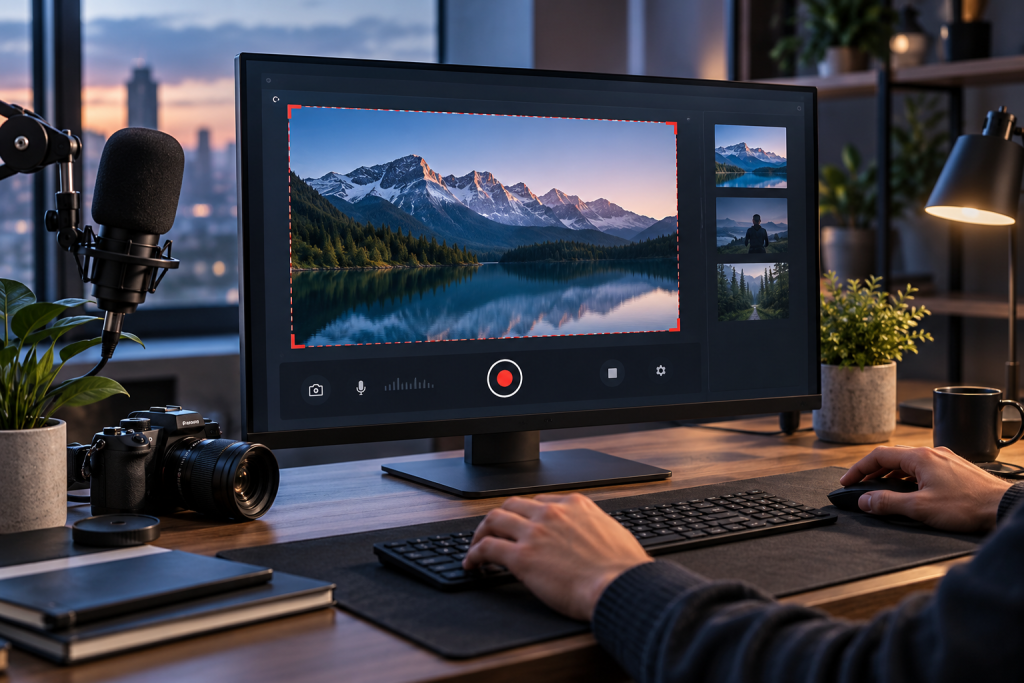
Most “best free screen recorder” lists are written by people who installed the app, saw it open, and called it a day. That tells you nothing. The questions that actually matter are boring and specific: does it watermark the export, what happens at the 1080p ceiling, does it choke on a 20-minute capture, and does the file land somewhere you can find it later. So I tested the free tier of every tool below on a normal Windows 11 machine I also use for everyday work, and I kept a Mac in the mix for the built-in option. Here is what actually held up.
Open source first: OBS Studio
If you want a free screen recorder and you do not care about a pretty interface, stop here. OBS Studio is open source, fully free, and has no paid tier to upsell you. That last part matters more than people admit. There is no “Pro” nag screen, no export resolution lock, no watermark.
The trade-off is the learning curve. OBS is built for streaming, so the mental model is scenes and sources, not “hit record.” Your first capture will involve adding a Display Capture source, checking your audio inputs in the mixer, then setting an output path under Settings. Once that is configured, it is genuinely reliable, and it records at whatever your monitor and GPU can handle.
Annoyances, honestly: the default output format is a fragmented container that some editors hate importing, so switch to MKV or MP4 in settings before you record something important. And the audio defaults will catch every notification chime unless you set up a separate track. Ten minutes of setup, then forget it.
Clipchamp is the easy Windows pick, with a catch
Clipchamp is Microsoft‘s browser-based editor that also handles screen capture, and it is the least intimidating thing on this list. The screen recorder itself is free and the workflow is obvious: click record, pick a window or the whole screen, stop, and the clip drops straight onto a timeline where you can trim it before exporting.
The catch is the export ceiling. According to ToolRadar’s 2026 roundup, Clipchamp caps free exports at 1080p, and you lose the brand kit and premium stock assets. Full features run $11.99/mo through a Microsoft 365 subscription. For a quick tutorial clip at 1080p, none of that matters. For 4K capture or anything needing consistent branding, it will bite you.
It also lives in the browser, which means a heavy page or a greedy extension can cause stutter mid-record. I would not use it to capture a live demo I only get one shot at.
CapCut: great output, aggressive limits
CapCut records your screen and can cut and caption it in the same place, and the interface is polished in a way most free tools are not. But read the free-tier rules carefully, because this is exactly the “free until you hit a specific limit” camp that ToolRadar flags. Free export tops out at 1080p. AI edits are capped at around 5 per month, custom effects at 3, and Pro templates stamp a watermark on your video. Pro runs $9.99/mo.
My verdict: fine for a one-off social clip, frustrating as a daily driver. The moment you start leaning on the AI features that make CapCut interesting, you are staring at a paywall.
DaVinci Resolve for post, not capture
Worth a mention for a different reason. The free version of DaVinci Resolve is, as ToolRadar puts it, the most powerful free video editor full stop, with a proper multi-track timeline, Fusion for VFX, Fairlight for audio, and color grading that rivals dedicated tools. Its limits are narrow but real: 4K UHD export maximum, and the advanced AI features like Magic Mask and noise reduction are locked to the $295 one-time Studio license.
Resolve is not a screen recorder. You record with OBS or your OS tool, then bring the footage here to trim, fix audio, and add captions. If your screen recording turns into real editing, this is where you land, and the free tier will carry you a long way.
The built-in options are better than you think
Quick reality check before you install anything. Windows 11 and macOS both ship with screen capture tools that cost nothing and do not nag you.
- macOS: the built-in capture tool records at up to 4K and includes iMovie for editing, both free forever with no paid tier. For a Mac user, there is almost no reason to install a third-party recorder for basic captures.
- Windows: the Xbox Game Bar and Snipping Tool overlay will grab a window or the screen without extra software, though they are limited on capture length and mic control compared to OBS.
If your needs are simple, one of these probably already solves your problem, and you should test it before downloading anything.
What about “AI screen recorders”?
Newer tools like Vibrantsnap take a different angle: record once, and the AI transcribes your narration, rewrites it into a cleaner script, reads it back in a studio voice, retimes the video, and drops smooth zooms around your clicks. Captions get generated word by word. For SaaS teams pumping out demo videos, that automation saves real time.
But it is a fundamentally different product from a recorder, and most polished versions are paid or use a free tier to funnel you into a subscription. If you just want clean footage to edit yourself, all that automation is overhead. Pick the tool that matches the job, not the marketing label on it.
How to choose without wasting an afternoon
Ask three questions before you commit.
- Do you need to edit afterward? Record an honest capture tool (OBS or your OS), then send footage to a free editor like Resolve. Do not force one app to do both.
- How long is your capture? Long recordings expose weak tools fast. A browser-based recorder that stutters on a 5-minute clip will fail on a 30-minute one.
- Where does the file go? Check the export resolution, the container format, and whether a watermark appears before you record something you cannot re-shoot.
My short list: OBS Studio if you want no limits and do not mind a setup step. Clipchamp or your OS tool if you want to record and export in five minutes. CapCut if you live on social and can tolerate the 1080p ceiling. Resolve for the edit after the fact. None of them cost a thing to try, so install the one that fits, run a two-minute test capture, and check the output before trusting it with anything that matters.